
With last week's release of Elements 13, we shipped what is probably the largest and most significant update to CodeBot since its inception: CodeBot v3.
CodeBot v3 is not just an extension of what came before it; it is a brand new experience that will – I know this might sound like hyperbole, but trust me, it's not – change how you write Elements code, forever.
The biggest change to CodeBot is under the hood, and that it has grown from a simple question/answer chat model to a fully orchestrated agent runtime powered by RemObjects Infrastructure. It knows different profiles and can spawn agents specialized for certain tasks, such as code review, finding security flaws, writing new code for you, or even interactive debugging. Each specialized agent automatically comes with Skills embedded that give it expertise in its field, and in Elements in general.
Skills
Detailed, predefined skills for your language (s) and platform(s) of choice let CodeBot really understand what you are working with. For example, if you are working on a cross-platform C# project (like I do when working on Fire itself), Codebot really understands that C# does not just mean .NET, and knows how to apply Cocoa concepts, use Elements RTL, and so on.
The Skill infrastructure is open and extensible, and you can create your own Skills (or have CodeBot create them for you automatically) to teach CodeBot about your own projects, coding style, and preferences, or to give it detailed knowledge about your application domains. You can create skills right inside CodeBot, and it will also automatically pick up any project-level Skills you might have from other tools such as Codex or Claude Code.

Tools & Approvals
CodeBot comes with more and better tools than ever, for all areas of development. It is better at reading code and has gotten really good at updating your code. It can build or test the project for you, diagnose error messages, run external tools, and more.
As someone once said, with great power comes great responsibility, so CodeBot has a new granular approval system that puts you in charge of what CodeBot can and cannot do.
By default, CodeBot will have read-only access to your project, meaning it can look around and give you advice. It can look, but not touch. For any action that could have an effect on your project (let alone outside of it), CodeBot will ask for your permission, which you can grant broadly or narrowly, based on your preferences and your trust in the tool. For example, if you ask CodeBot to make a change in your project for the first time, you will see someting like this.
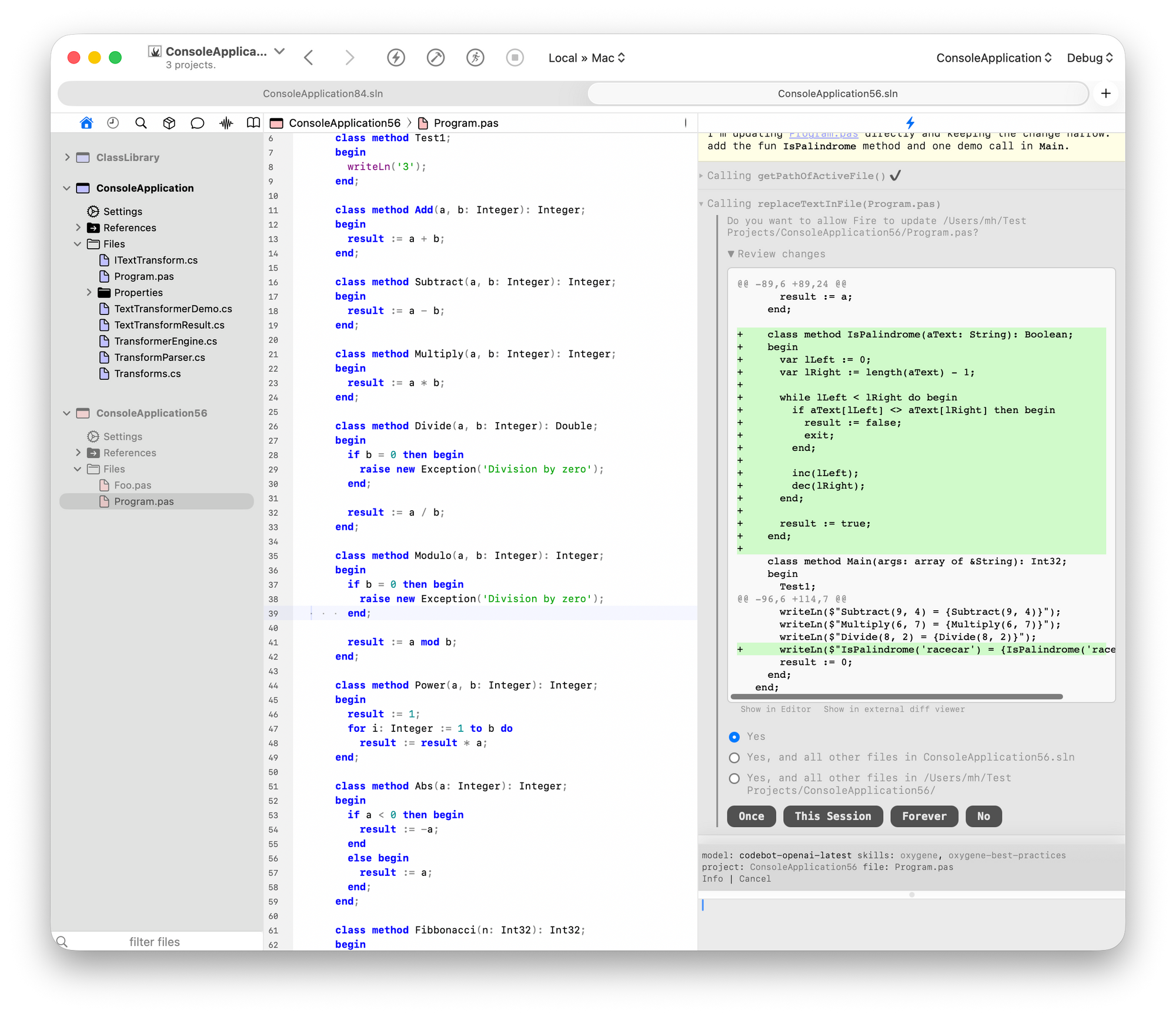
Note how, in addition to showing you the change it wants to make (more on that in a bit), it gives you several options:
You can allow this and future changes to this particular file, or to all files in your solution (or its folder). You can also choose whether you want to approve just this one change (it will ask you again for the next one), or if it can go ahead making changes on its own moving forward – either just for this coding session, or forever.
This approval concept applies across all actions CodeBot can take, and you can decide how much autonomy to give it. For example, I tend to want to review code changes, especially when working on important codebases, so I generally press "Once", here, but I'm happy to let CodeBot do tasks such as rebuilding my project or starting a debug session, without re-confirming each time.
YMMV, also based on what type of project you work on – e.g., a serious project vs an afternoon vibe-code session.

Of course, you can always review (and remove) all pre-approvals in the new "Manage CodeBot Data" sheet.
(P)reviewing Code Changes
You've already seen that CodeBot will show you a nice inline diff of the changes it plans to make, and that's great. But I often find these diffs hard to read – especially for more complex or intricate changes to an existing method flow. CodeBot gives you the option to open the diff in a real external diff viewer of your choice, such as Araxis Merge (my favorite), Kaleidoscope, or BBEdit.
What's more, if you like what CodeBot proposes, but are not quite happy with the final shape – e.g., the formatting is a bit off – you can tweak it in Araxis Merge, hit save, and when you come back to Fire or Water, your changes will reflect when you apply.
No need to track down the code to adjust it afterward, or ask CodeBot to make a minor adjustment.

Action Items
Oftentimes, especially when doing a code or security review, CodeBot might come back with a whole bunch of suggestions on what to fix or improve. Not for your own code base, of course, but code other people wrote. Sometimes it can be hard to keep track or tackle it all at once, so CodeBot has the option to log these as "action items", to keep track of, tackle one by one, or come back to later.
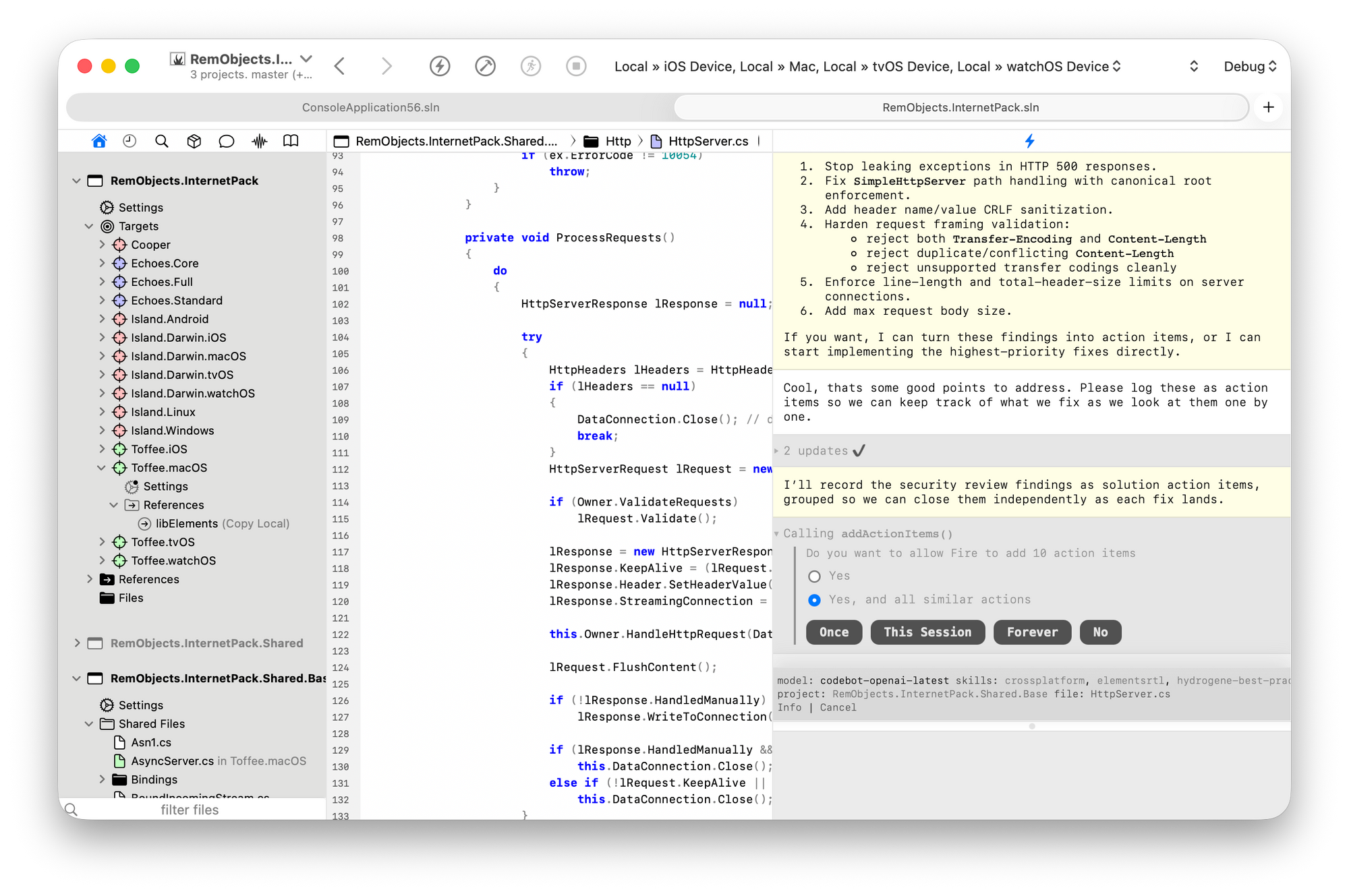
You can then ask, e.g., to address these one by one and mark them off the list.
Builds, Runs & External Tools
CodeBot can, of course, run a build for you and look at, diagnose, and address error messages. In fact, it will often suggest doing this on its own after making changes, to make sure the changes landed well, or make further tweaks and adjustments if the first fix didn't stick. It can also run your project, including in EUnit test mode to run your unit tests (which it will often suggest to set up for you as it implements new features or fixes for you).
In addition, CodeBot can run (and manage long-running) external tools for you – after proper approval, of course. For example, you might be working on a project that connects to a separate server app. You could ask CodeBot to launch that server and keep an eye on its log output as you debug your app (or as CodeBot debugs it for you ;).
Debugging
Which brings us to Debugging. New in .3083 this coming week, CodeBot will be able to run a fully autonomous debug session for you, which is truly a sight to be seen. You can just tell it:
Hey, when I run my app, at point X in time I would expect it to print "blah", but it prints "blub". Can you debug and figure out why?
CodeBot will go ahead and debug this for you; it will run the project (sometimes many times), set breakpoints, step thru the revelant pieces of code, evalaute expressions – in essence, employ all the debugging steps you would normally do manually – and in the end, hopefully, not only point you to soucre of the bug, but also offer a ready-to-apply fix to solve your problem!

MCP Support
Model Context Protocol (MCP) is an industry-standard protocol for connecting AI tools, and CodeBot comes with built-in support for MCP both as a client and a server.
MCP Client support means you can connect CodeBot to your favorite MCP sources and access the external tools or resources provided by them. For example, you can connect CodeBot to our GitHub account via MCP and let it manage repositories or check and log tickets for you, or connect it to Notion to have it automatically generate documentation to share with the rest of your team.
MCP Server support means that CodeBot itself can (opt-in) act as an MCP server, and you can let other AI tools control Fire or Water for you. For example, you can connect Codex or Claude Code to Fire and have them run builds for you, understand the project content, or make changes for you. Essentially, any tool that CodeBot has at its disposal inside Fire or Water also becomes available to the AI apps you connect to it.
And So Much More
And these are just the highlights. There is so much more in CodeBot v3, anbd even more to come over the next few weeks and the rest of the year. We can't wait for you to try it!
Under the Hood
CodeBot v3 is built on our all-new Infrastructure AI Agent Runtime. It is a new shared codebase that will also be used by the upcoming (very soon now, promise 🤞) CodeBot for Delphi, and another in-the-works product, and is also available for use in your own projects, via our RemObjects Infrastructure platform.
Get Elements 13 w/ the New CodeBot v3, Now
Elements 13 is out now and – as always – a free update for all users with an active subscription. Don't have a license yet? Get one in our also brand new and more beautiful-than-ever Online Shop, or get a free 30-day trial version to check it out!
Read more about CodeBot on its dedicated product page here.
Enjoy, and let us know how CodeBot changed your developing life!