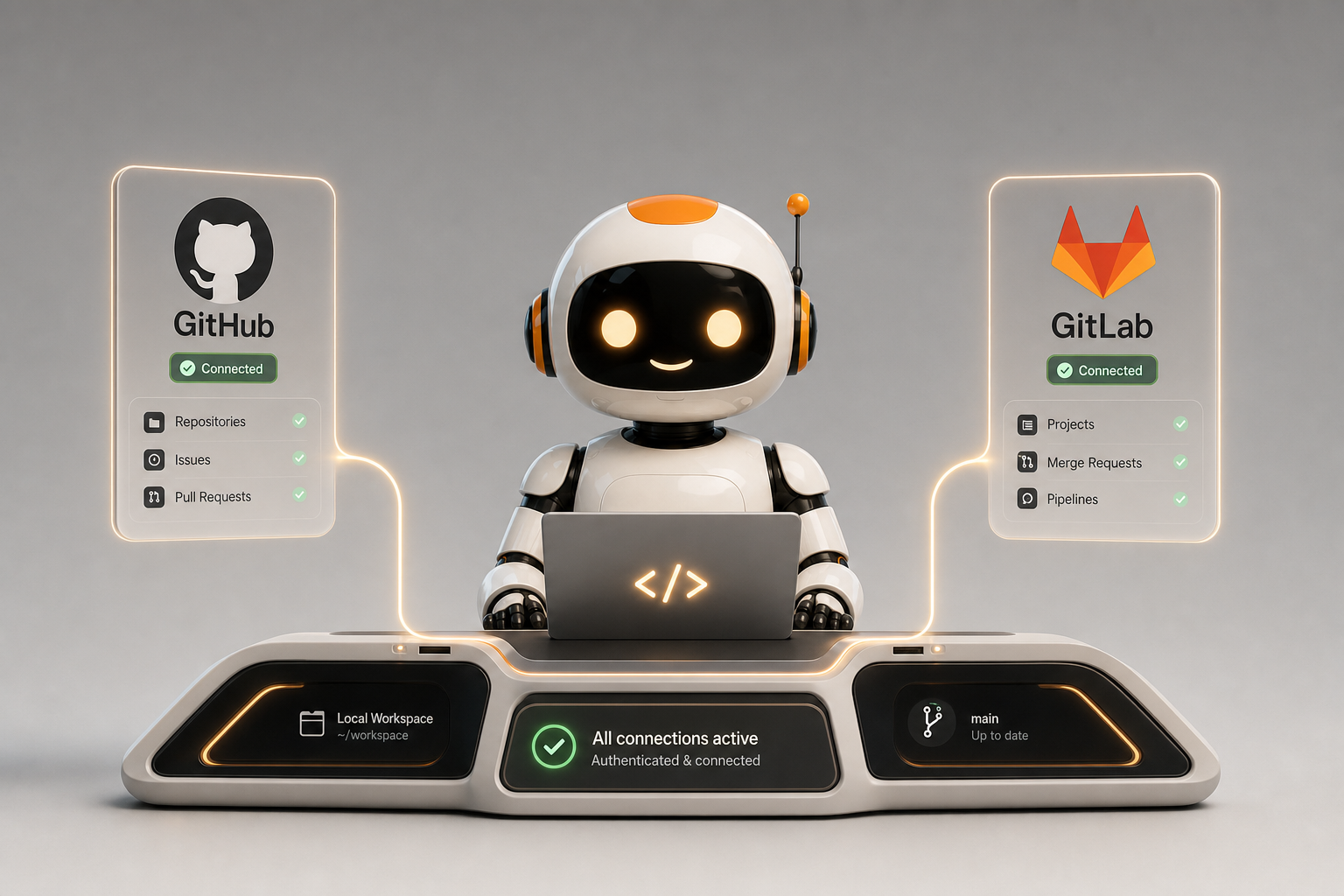
One of the things we always strive for our tools to do is meet you where your work already lives.
For most developers these days, that means Git, of course, but it also means GitHub or GitLab. Your source code is there. Your issues are there. Your pull requests or merge requests are there. CI status, releases, tags, milestones, labels, all the little bits of project state that live around the actual code — they are there too.
So with this week’s builds, we started to make Fire, Water, GitBrowser, and CodeBot a lot aware of those services.
You can now add GitHub and GitLab accounts in the Account Manager, including custom/self-hosted GitLab installs, and both GitBrowser and CodeBot in Fire/Water/Campfire can make use of them.
GitBrowser
The first place this shows up is GitBrowser.
Until now, GitBrowser mostly assumed that the repositories you cared about already existed locally. You could add a folder, drag a checkout in, group your repositories, work with local changes, branches, worktrees, commits, pushes and pulls, and so on.
That is still the core of GitBrowser. It is, first and foremost, a really nice tool for working with your local Git checkouts. But now it can also help you get those checkouts in the first place.
Once you have added a GitHub or GitLab account, the “Clone Repository...” flow can show repositories from that account. Pick one, choose where it should go, and GitBrowser will clone it and add it to your sidebar. SSH is the default, because that is what most of us use day to day, but HTTPS is available too.
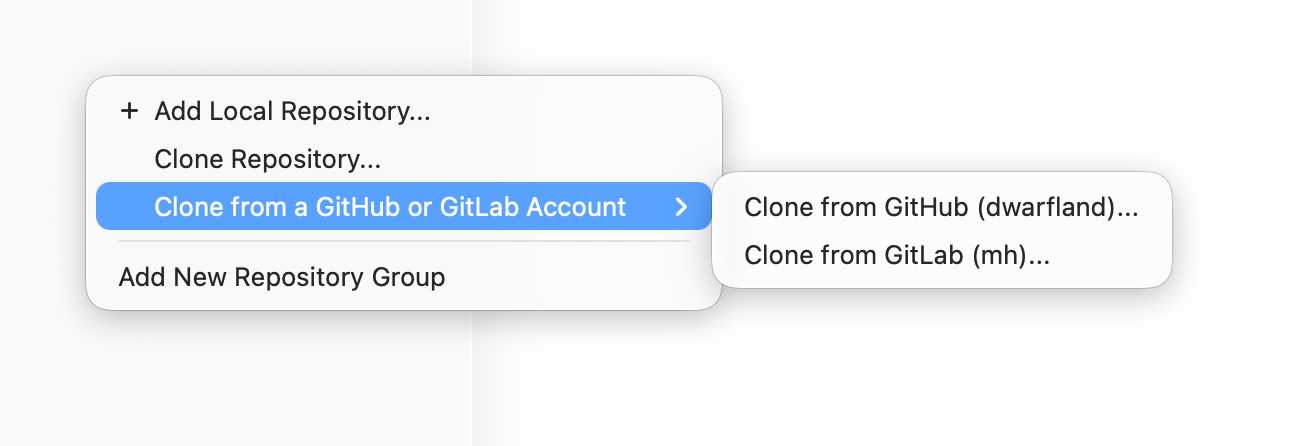
This also works for custom GitLab servers, not just gitlab.com. So if your team runs its own GitLab instance, GitBrowser can talk to that as well.
The other direction is publishing.
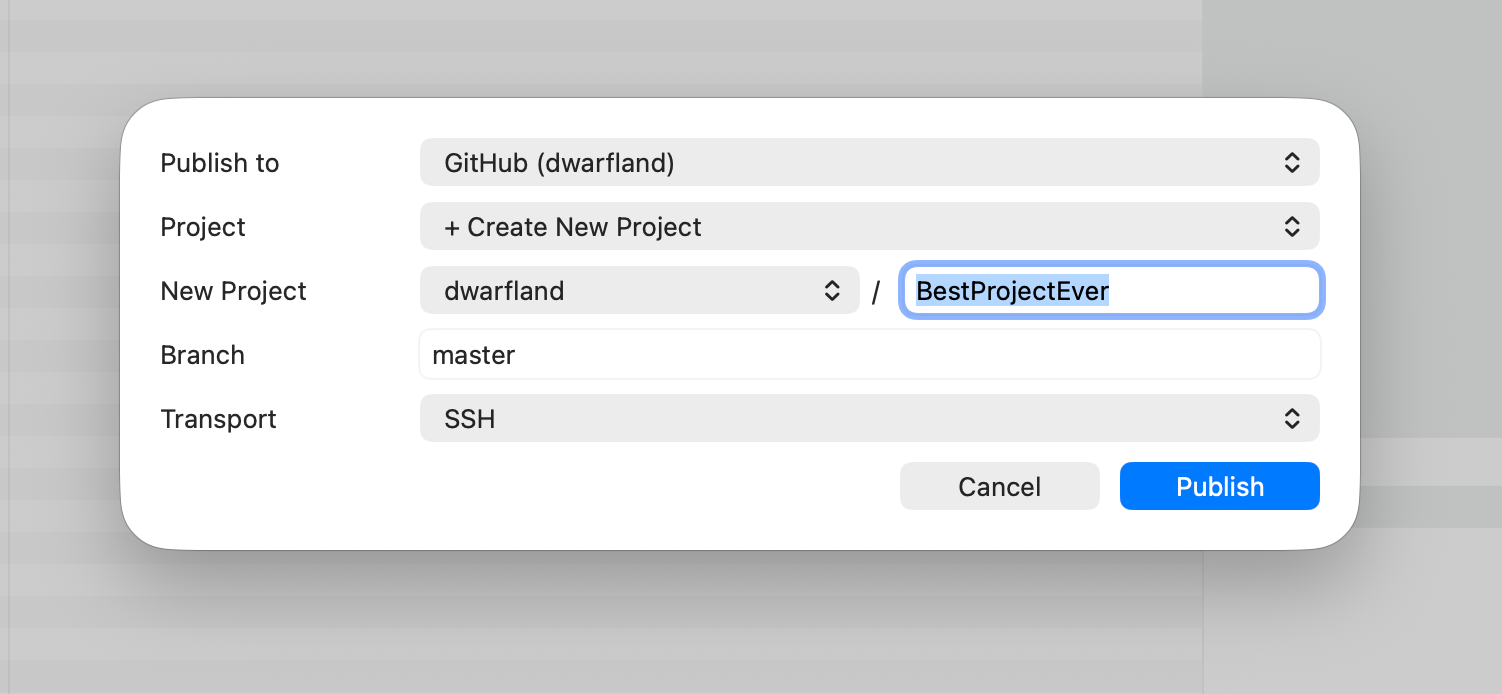
If you have a local-only repository — maybe you initialized a folder locally, or dragged in a project that was not under Git yet and let GitBrowser initialize it — GitBrowser can now help publish it. You can publish to:
- a remote URL you already know,
- an existing empty GitHub/GitLab project,
- or a brand new GitHub/GitLab repository.
New repositories default to private, because that seems like the least surprising and least embarrassing default. You can choose the owner or namespace, enter the repository name, pick the branch to push, and GitBrowser will create or connect the remote, add origin, and push with upstream tracking set up.
One small but important detail: GitBrowser tries to infer GitHub/GitLab relationships from your existing remotes. So if you cloned a repository outside of GitBrowser, it should still be able to recognize “this is a GitHub repo” or “this is from that GitLab server”, and offer useful actions such as opening it on the web.
This is the beginning, not the end. Once GitBrowser knows about your account and can match a local checkout to a hosted project, a lot of future niceties become possible: creating pull requests or merge requests, checking out PRs into worktrees, showing CI state, opening issues, and so on, are on our list next.
But cloning and publishing felt like the right first step. Nice, practical, and immediately useful.
CodeBot in Fire and Water
The second place this shows up is CodeBot.
CodeBot already understands your solution, your code, your build errors, your debugger session, and so on. Now it can also understand the project-management side of the work, using the same GitHub and GitLab accounts you configure in the IDE.
That means you can ask CodeBot things like:
What issues are open for this project?
or:
Can you look up issue #1234?
or:
Log a new issue for this bug we just found.
CodeBot sees a unified tool surface, regardless of whether the backing service is GitHub, GitLab.com, or your own GitLab install. You do not have to think in terms of GitHub’s API shape versus GitLab’s API shape. CodeBot asks for “issues”, “pull requests”, “labels”, “milestones”, “pipelines”, “releases”, and so on, and the provider-specific details stay hidden behind the scenes.
For this first round, CodeBot can work with:
- configured GitHub and GitLab accounts,
- project/repository connections for the current workspace,
- issue lookup, search, creation, updates, and comments,
- pull requests and merge requests,
- labels and milestones,
- projects/boards where the provider supports them,
- CI/pipeline/status information,
- releases and tags.
Write operations still go through CodeBot’s approval system, so if CodeBot wants to create an issue, comment on one, or change something in your project tracker, it will ask first and tell you what it is about to do: which provider, which account, which repository, which item, and what change.
That is important. Reading project context is one thing. Writing to the team’s issue tracker is another. Helpful automation is great; surprise automation is not.
Under the hood, this is built as native account support rather than MCP. MCP is still great, and CodeBot continues to support it, but for GitHub/GitLab we wanted this to feel like a first-class IDE feature: accounts live in the Account Manager, credentials are stored securely, and the same connection can be used by GitBrowser, CodeBot, and future IDE features.
As always, this is one of those features where the first version is useful, but the real payoff comes as it starts connecting with everything else.
Imagine asking CodeBot to investigate a failing build, trace it back to a commit, look up the related issue, summarize the current PR, and then draft a comment with what it found. Or having GitBrowser show you not just that your branch is ahead, but that the matching merge request is green and ready to go.
That is the direction we are heading.
For now: add your GitHub or GitLab account, try cloning and publishing from GitBrowser, and try asking CodeBot about your issues.
And, as always, let us know what feels useful, what feels awkward, and what obvious thing we forgot.
