
This week, I am thrilled to announce the official public release of a brand new RemObjects Software product that has been a long time in the making.
For almost 25 years, at RemObjects we have been making tools exclusively targeted at software developers. Campfire is an app that will be of interest to developers, but also – we hope – to a much wider audience.
What is Campfire?
I have been working on and with Campfire for almost half a year now, and I think it is one of the most fun and exciting projects we have ever created. It is also one I find difficult to describe in a single sentence, because it is (and does) so much.
We started with the idea of "What if we took CodeBot, our intelligent coding assistant in Fire, and made it useful for everyone, not just developers using Elements? Maybe even not just developers, period?"
The result is Campfire.
Campfire is an AI-driven environment to get work (or fun) done in. Whether you are building an app or a website, working on a marketing project, creating a book report, building an image art portfolio, or creating a presentation. You open a folder of stuff, whatever that stuff may be, and Campfire helps you do whatever you want to do.
If you are already familiar with our products, you can think of Campfire as the (but also more universally capable) little brother of Fire, our software development environment for the Elements.
Chat
It all starts with the chat.
CodeBot is the name of our smart AI assistant, and most of what you do in Campfire will be done by talking to CodeBot, asking it questions or telling it what to achieve.
When you first open a folder in Campfire, the entire window is chat – the same CodeBot chat interface you may already know from our CodeBot in Fire, Water, or Earth. The chat starts with a greeting where CodeBot welcomes you; the bottom half is where you write your messages to CodeBot.
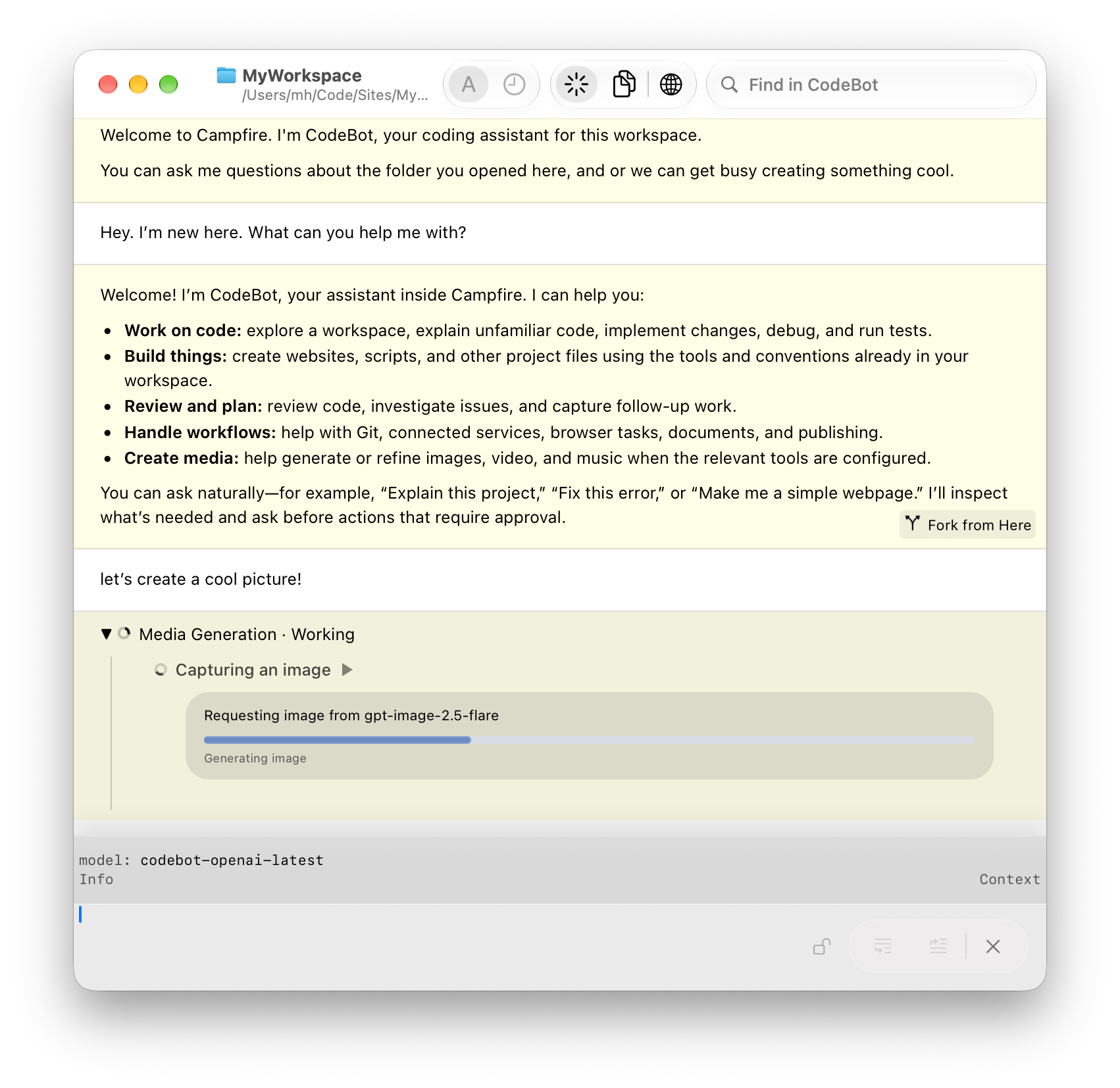
Roads to all possible worlds open here, limited only by your imagination of what to ask of CodeBot!
Campfire is built on the all-new CodeBot 4, and it brings with it most of the features CodeBot has in Elements, and adds a whole bunch of new capabilities, such as enhanced image workflows, character creation, video, speech, and music generation, document handling, connections to external services and social media such as Discourse or Instagram (preview), and more.
Why Campfire
Of course, chances are if you are reading this, you are already familiar with AI chat from the likes of ChatGPT. Campfire is all that, but much more – because Campfire has (controlled) access to your stuff and can work intelligently with it. It can analyze your local files, work with them, update them, or create new ones.
Campfire can work with any AI provider (or local models) you like, and most importantly, you can switch between them or mix them as you see fit. You might use GPT for the main chat, but leave image generation to Gemini, video generation to Grok, and turn to ElevenLabs for high-quality speech or even music.
You can connect to local model engines, e.g. LM Studio or Ollama for chat, or use ComfyUI to explore the latest in local media generation.
Your chat's memories and context stay local in Campfire and carry over as if you switch between providers.
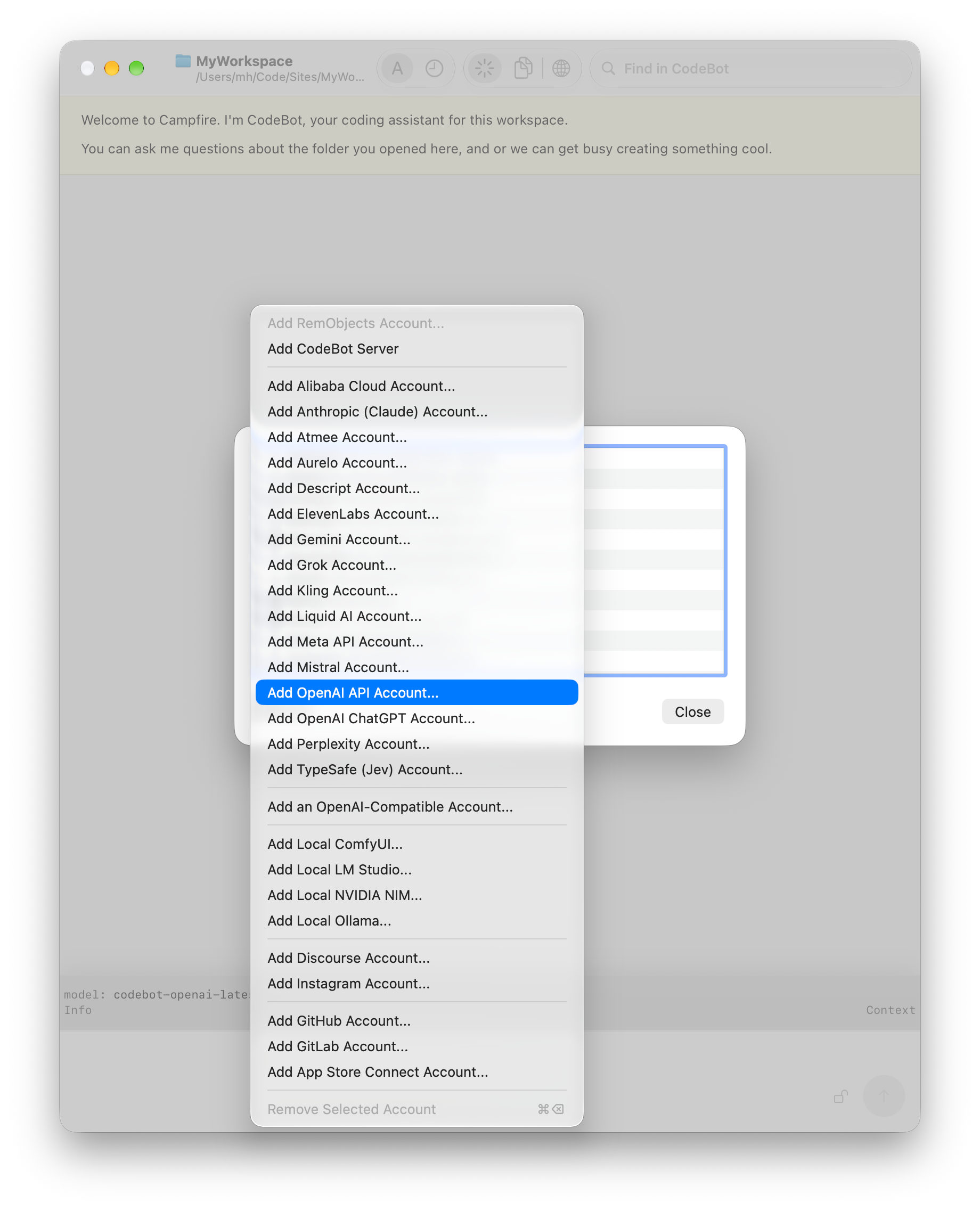
Image Generation
Image generation is one of the core focal points of Campfire.
Of course, you can create images anywhere; just ask ChatGPT or even Grok right in the Twitter (sorry, X) app. But you will soon find the options there are limited, inconsistent, and unreliable. Also, if you generate a lot of images, say for a media campaign, managing images can become more than painful.
Campfire has dedicated tools to allow you to take control of your media generation. You can easily test the exact same prompt against different image models, compare the results, and keep the best one. It comes with skills and workflows to help you create characters that will look and behave consistently across images or videos generated over time. This includes real-life human characters as well as imaginary ones such as CodeBot himself.
Not only will Campfire help you build consistent characters, it also has tools and skills to ensure quality and consistency as more images of these characters get generated. For example, it can validate the faces in generated images actually match the target before using an image for a social media post.
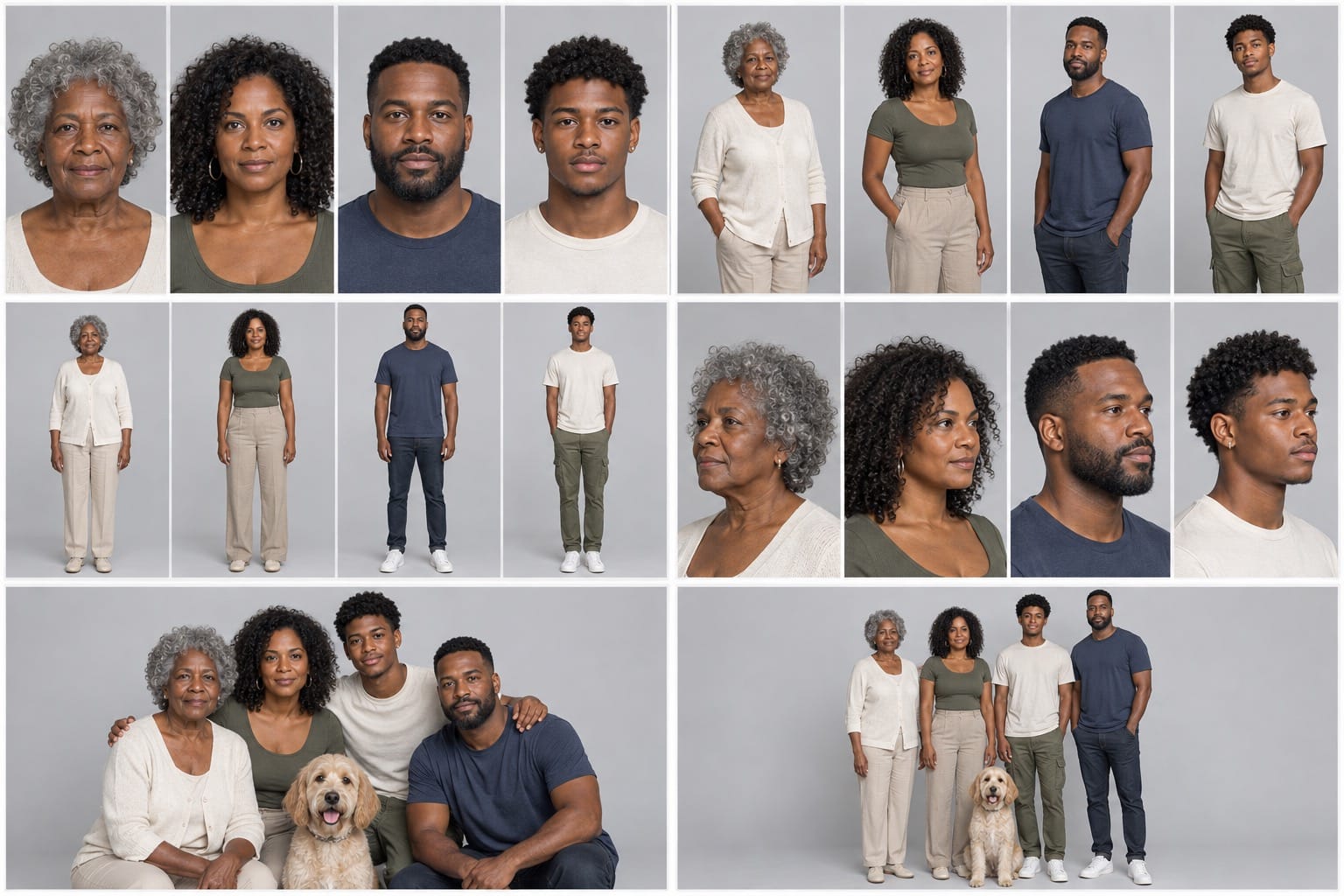
Image generation works great from chat – just ask CodeBot what you want – but it has such a central focus in Campfire, that we have it a dedicated UI, the Image Workbench:
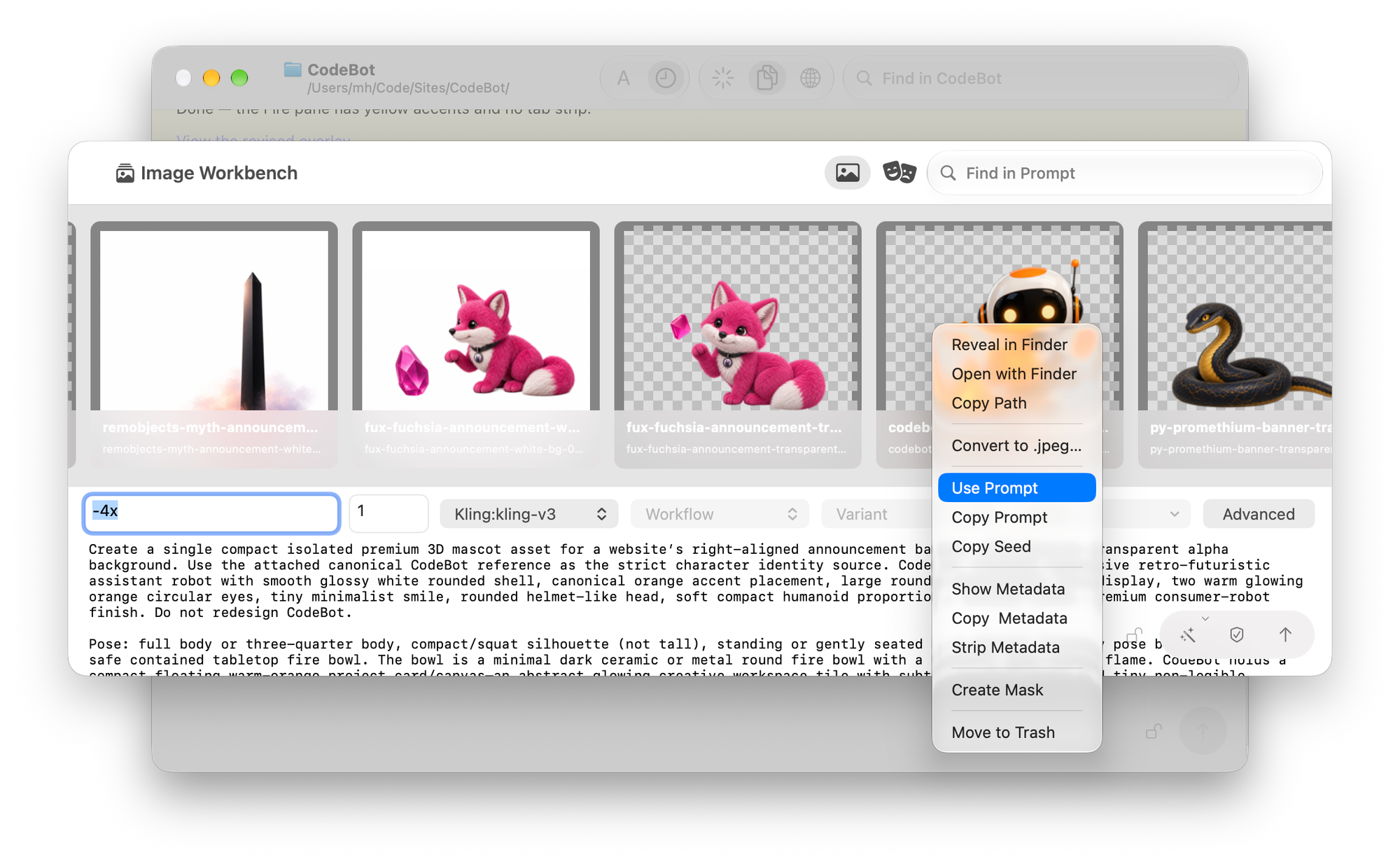
Here you see all your recent image generations and can craft and fine-tune your prompts, compare variations, both between different prompts and between different models or providers. When supported (for example, with a local Comfy install), you can select specific custom image creation workflows and variants.
It’s super easy to switch between models or workflows and compare the results.
Image Workbench also has built-in prompt refinement; draft a quick summary of the image you want, and with one click, have it turned into a detailed and expressive image prompt, ready to be used (or tweaked more).
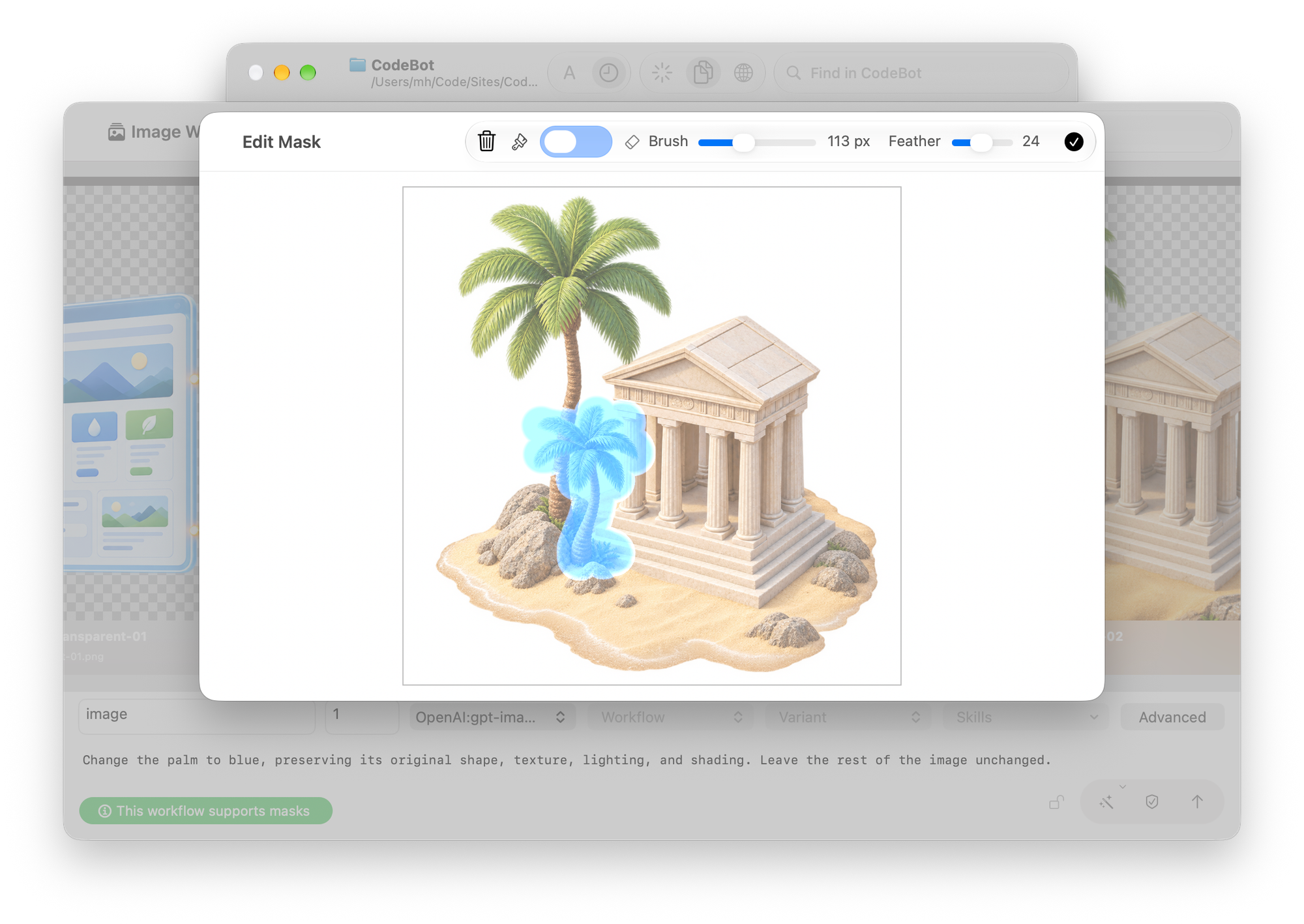
For image models that support inpainting, Campfire has a mask drawing tool built in. Simply choose "Create Mask". Drag the new mask image into the prompt field to have the model replace just that part.
Other Media
In addition to images, Campfire also allows you to create videos, sounds, voice (text-to-speech), and even music, when connected to a model/provider that supports it.
Just ask CodeBot in the chat what you need, and it will craft the right prompts for you under the hood and call tools and/or models to get the job done.
You can also send media prompts directly to the media model in question, by using /image, /video, /audio, /voice and /music slash commands. You can include parameters, and the prompt will be passed straight to the media model unaltered, without passing through or being reviewed by the chat model.
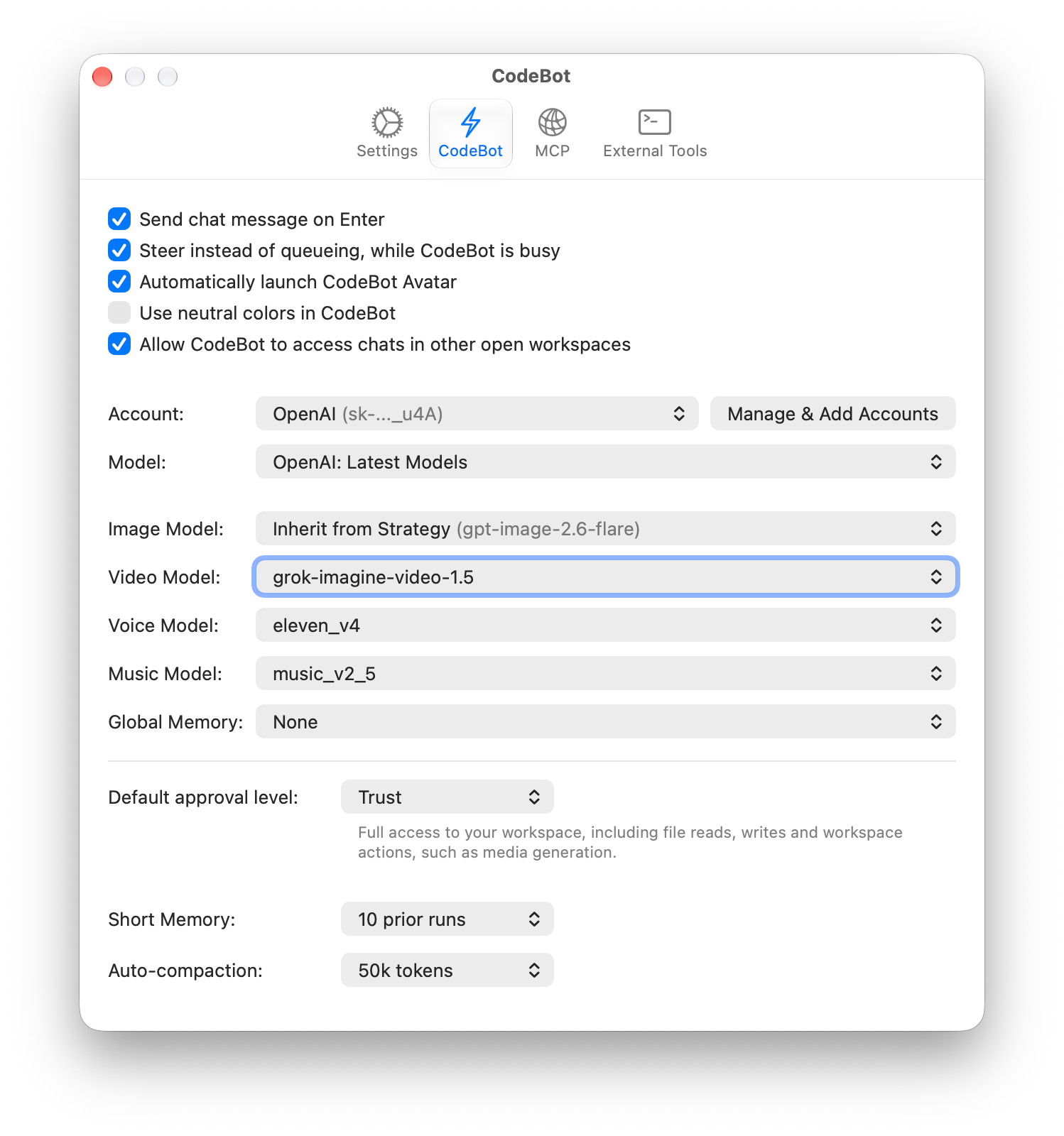
You can pick default media models and providers, separate from whatever main chat provider (we really recommend OpenAI) you are using. You can also override these per workspace, or per request: just say "use Kling-v3 for this image" or add e.g. "model=gemini-pro-3-image" to the slash command.
Scheduled Tasks and Proactivity
Campfire can schedule tasks, for example, to create a new social media post every day in the afternoon, or check up on open bug tickets on your GitHub once every half year ;). Schedules can optionally run in the background and only call for your attention if needed.
More interestingly, you can enable CodeBot in Campfire to be proactive and message you when it sees fit, without prior scheduling. Whether you want a workspace acting like a personal friend who checks in on you on their own once in a while, or have CodeBot give you occasional new ideas about, say, a new ad twist for your ad campaign – the possibilities are endless.
Knowledgebases
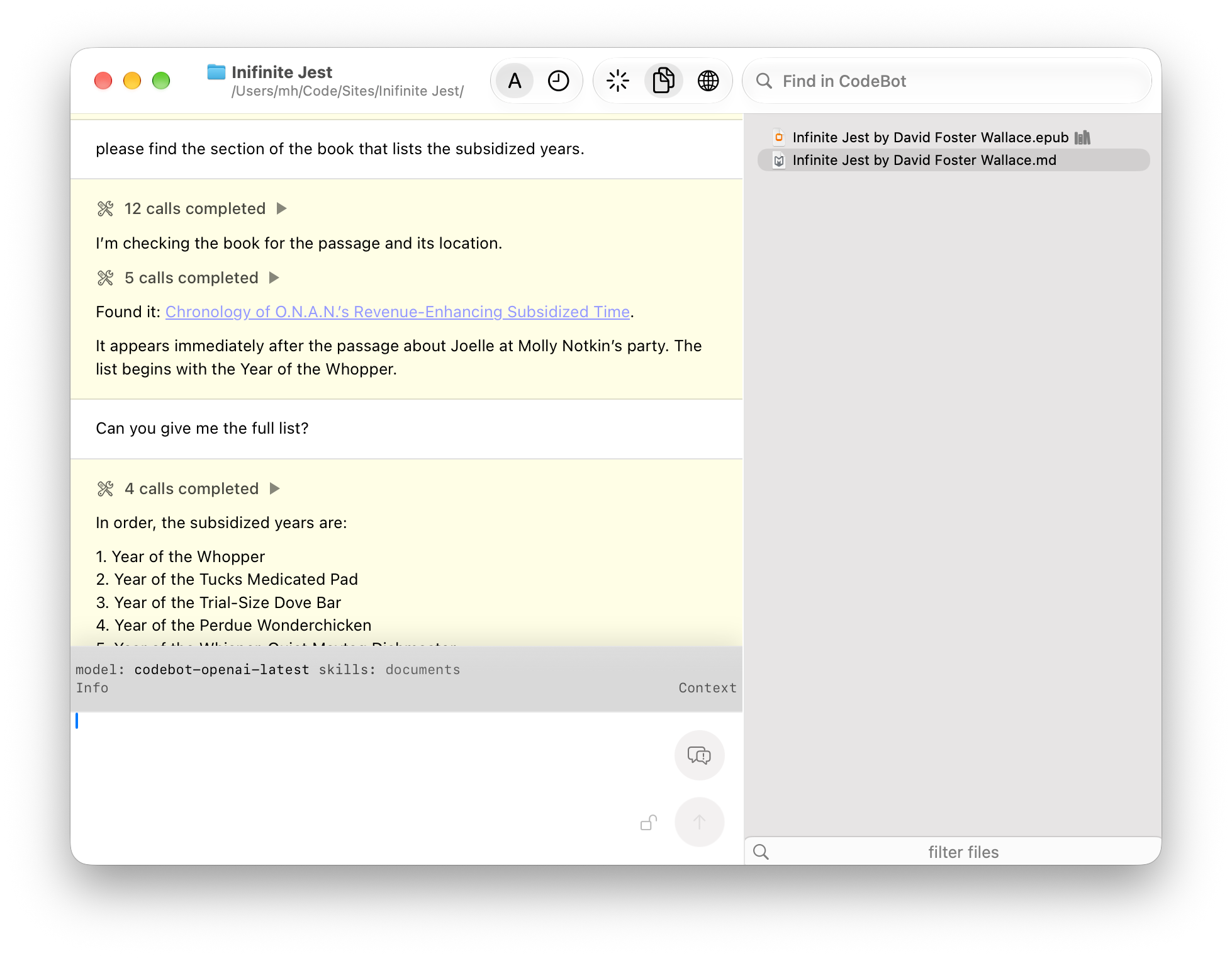
Knowledgebases are a great way to give Campfire access to vast sets of information. Whether you're writing a book report and want CodeBot to have the full prose (and maybe a handful of essays about it) at its fingertips, or you have a bunch of technical documents for the task at hand – you can create a knowledgebase from any .pdf, .epub or .md simply by asking for it (or via right-click on the file).
Once done, CodeBot has immediate access to the file for both textual and semantic search – meaning it can not only search for specific phrases, but for more abstract content and meaning.
Skills
Skills are a way to teach an AI model to do certain tasks to your liking. Campfire comes with pre-defined skills for almost anything, and more skills and capabilities are being added all the time. Most skills are accompanied by tools built right into Campfire to perform tasks for the skills – with AI or deterministically. For example updating the app data on App Store Connect. Or posting your new ad to Instagram.
You can also build your own skills – or have Campfire build them for you.
Some useful skills include App Store Connect app configuration and publishing, browser control, bug triage, image model LoRA training for ComfyUI, running marketing campaigns, and – last but not least – creating custom skills for you.
Online Accounts
You can connect Campfire to many types of external online accounts in order to have it retrieve information or post content, such as social media, bugs and project management, and more. For example you can have Campfire post content to Instagram for your social media campaign (in preview*), have it connect to your GitHub to find new tickets or log bugs in the project you're working on, or have it participate in discussions or managing support on Discourse.
It can even connect to Apple App Store Connect to help you prepare the publication of our next app.
More account types will be added over time; if you're missing one, let us know.
Model/Model Conversation
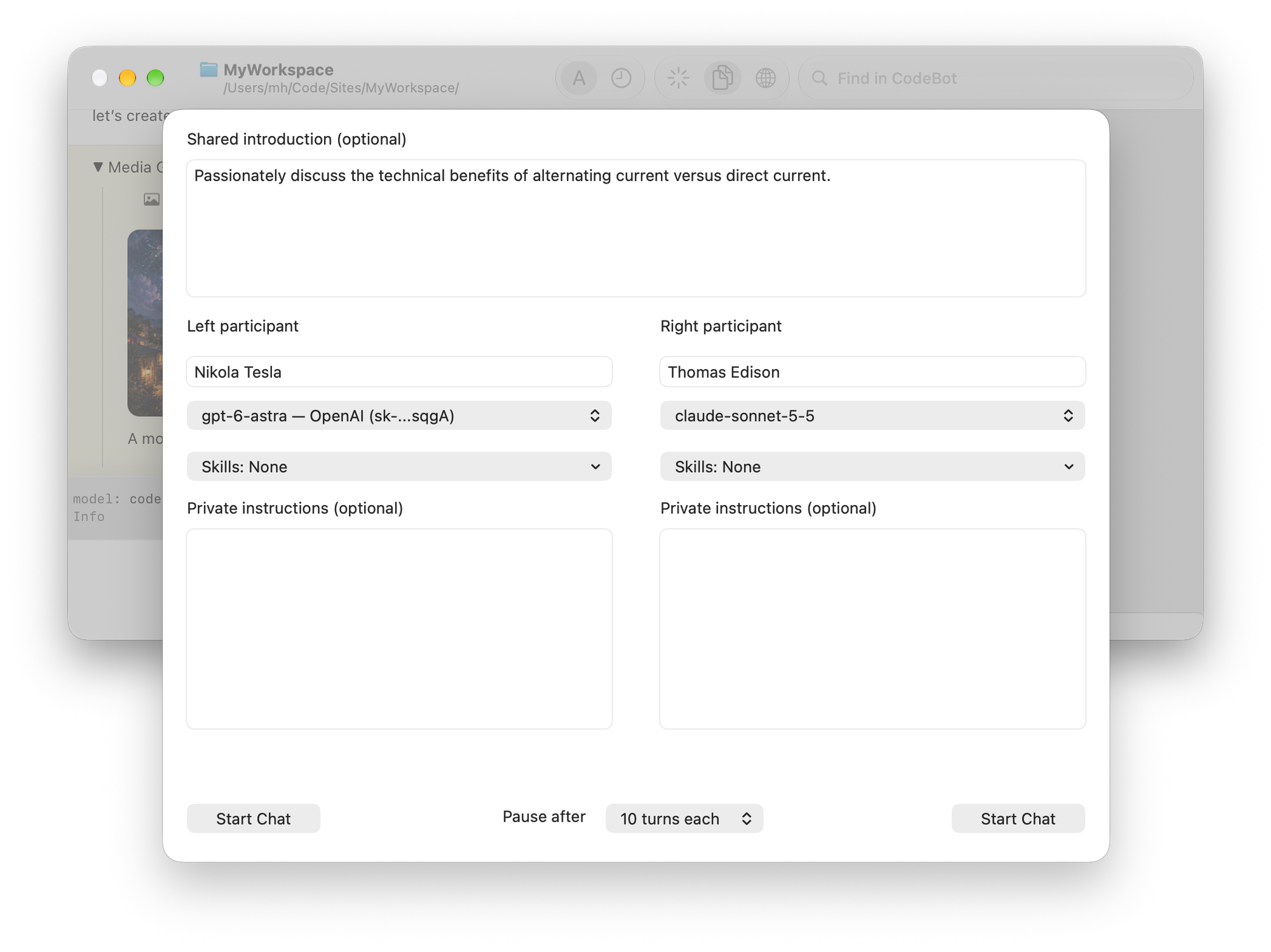
One fun feature in Campfire are Model/Model Conversations.
In normal chat, you talk to the model to get work done and achieve a goal. In a Model/Model conversation, you set up two independent AI models to talk to each other. The goal can be explore opposing viewpoints on a topic, have an idea explored from two angles, or have a project plan spec criticized.

Imagine for example giving the chat the plan for your next project, and asking one model to justify its concepts and the other to find holes and problems.
An interesting conversation will almost certainly ensue. You can watch along, and you can step in as third participant to guide the conversation, if needed.
I personally find this mode particular useful for reviewing a new idea or approach to a task. Give each model one side of the picture and have them duke it out and weigh the pros and cons.
Get Campfire Now!
Campfire 1.0 is out now. Check it out now – we can't wait to see what you do with it!