
It's been less than half a year since we introduced CodeBot 3, an update that really took CodeBot for Elements to the next level. Since then, it has been improving almost weekly; it's made its way to Linux via Earth, and is even getting its own brand-new workspace application, Campfire, that takes it beyond just code.
Today, we are taking it to the next level, with CodeBot 4.
In addition to many under-the-hood improvements, there are four core features that make CodeBot 4 for Elements and Campfire stand out
1 - Multi-Chat
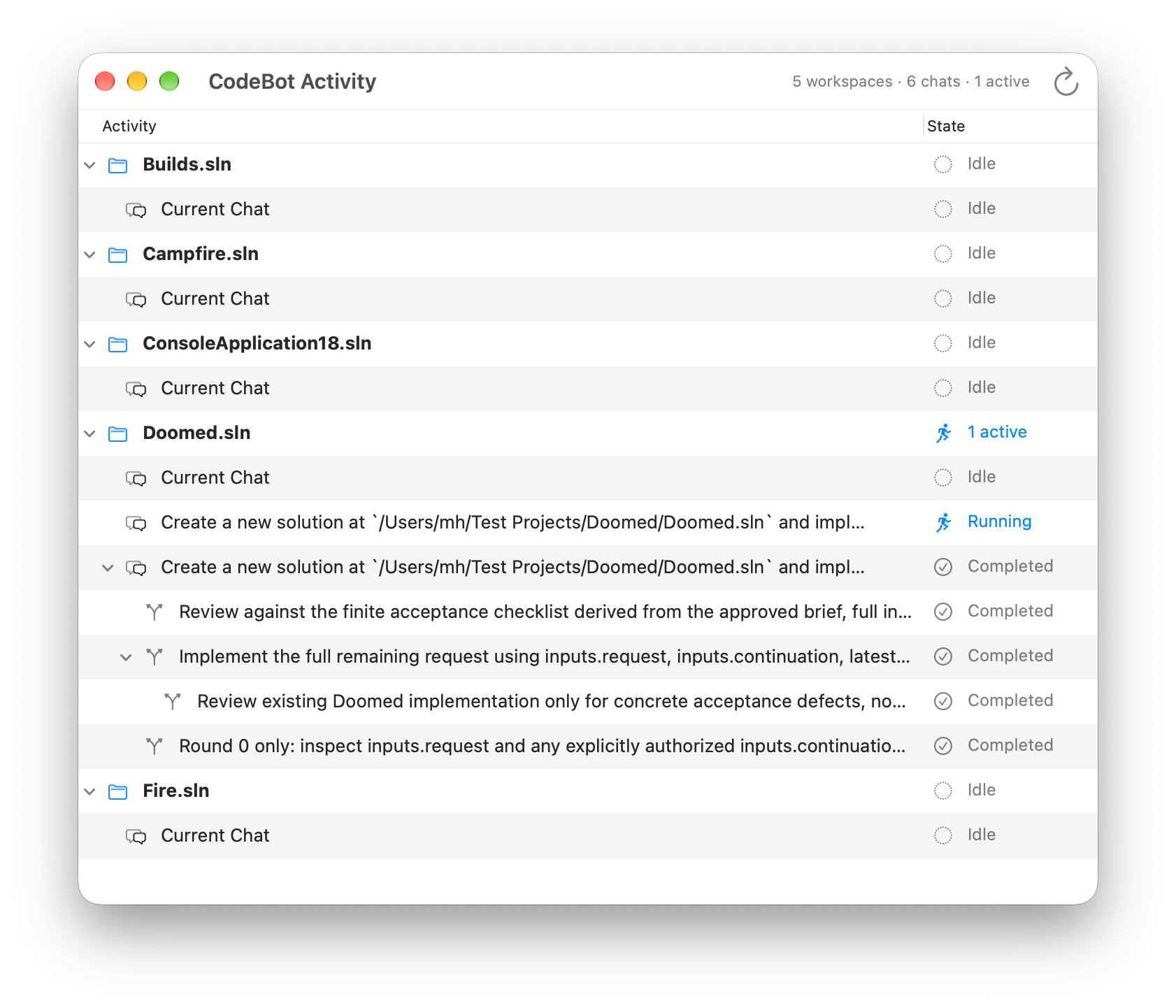
With CodeBot 4, you can now have multiple chats with CodeBot at the same time. This is useful for many scenarios – whether you just want to pause work on one thing and focus on something else, or have many things going at the same time. And it becomes especially helpful in "CodeBot First" mode (see below), which allows CodeBot to more proactively take charge, without interrupting your current conversation.
A new CodeBot Activity window is provided to show you what CodeBot is up to – not just in active chats, but also for background tasks such as editor-invoked Code Completion, and more.
And you can switch between and manage chats easily from the new "Chats" button that appears in the message pane as soon as more than one chat is open.
Chats are not silos of their own. Each chat still has, when needed, access to what's going on in the rest of your solution or workspace (and, optionally, even across other solutions/workspaces open in Fire or Campfire).
2 - A New CodeBot First IDE Mode
Fire, Water, and Earth now allow you to choose between two IDE modes: "Code First" (essentially what you are used to) and "CodeBot First".
CodeBot First mode radically rethinks the IDE to focus more on – you might have guessed it – CodeBot chat, rather than code. This is useful when you want to work in a more "vibe coding" mode and let CodeBot do most of the coding and debugging work for you. Of course, you still retain full access and control over your code.
You can toggle Code First/CodeBot First globally for the entire IDE, and/or individual solutions (unless overridden per solution; each solution follows your global choice).
CodeBot First, in this first iteration, implies three changes to the IDE:
- It switches CodeBot Chat to the center view of the IDE, making it the main content area. Code and other content move into the right-hand pane. This emphasizes the focus on working in the chat, with source code becoming an artifact to inspect and review.
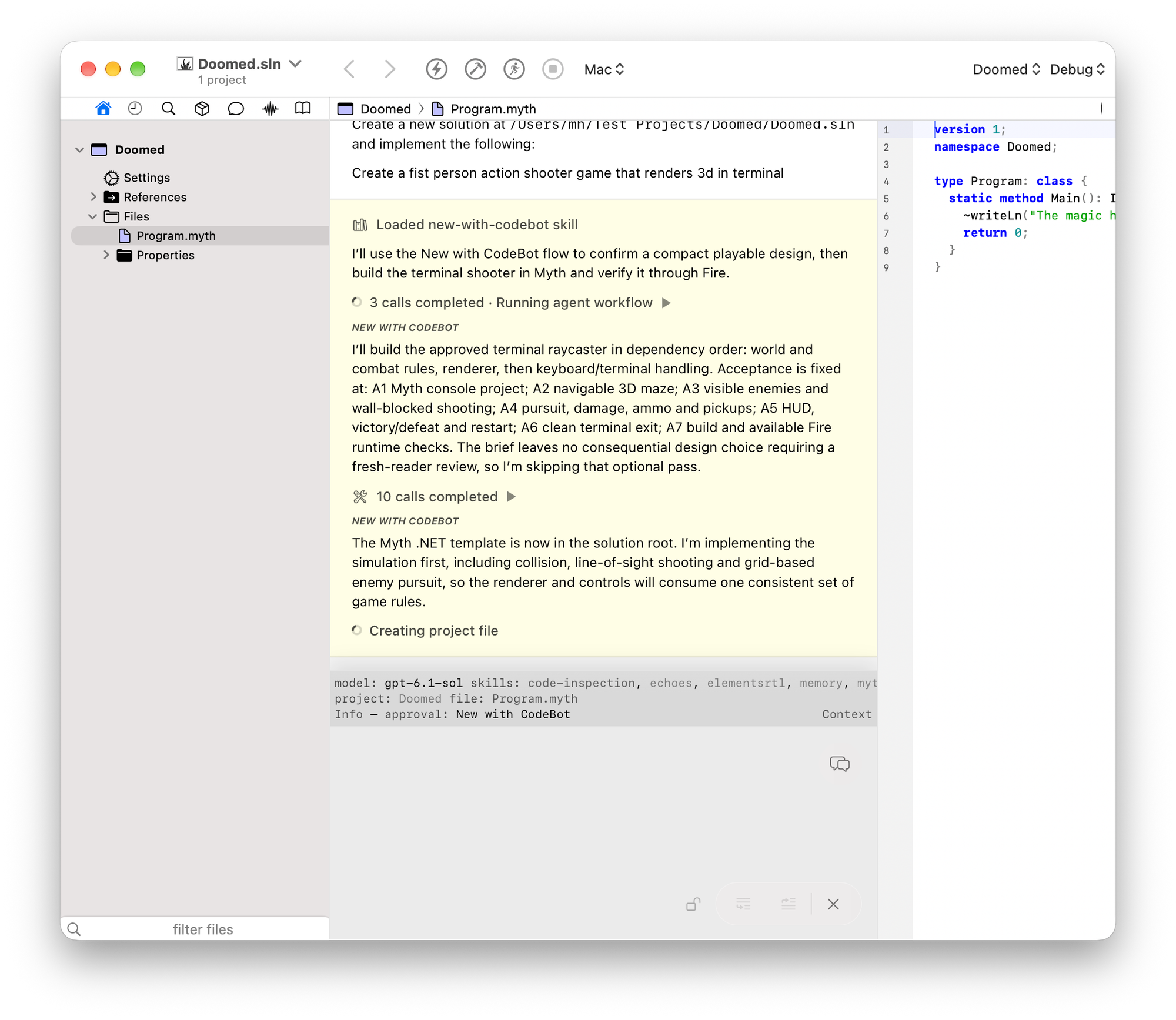
- It switches Approval Mode (see below) to a special new "Solution" mode, allowing CodeBot more rein to create and work in our solution without constantly asking for approval. The implication here is that if you work in this mode, you trust CodeBot for first-level changes. (of course you can and should still review, e.g. before committing to Git).
- It makes CodeBot more proactive and allows it to react to events in the IDE on its own, without you asking for it. E.g.
- If a debug session hits an exception, CodeBot will automatically start to investigate and–ultimately– find a fix.
- If a build fails with errors, CodeBot will immediately start looking at the error(s), find what's wrong, and try to address them.
- etc.
CodeBot First will not be the right mode for every project, but it is a great way to work on small side projects, vibe coded projects (I really don't like that term, but alas...), or to just get a quick prototype off the ground. Which brings us to:
3 - New with CodeBot
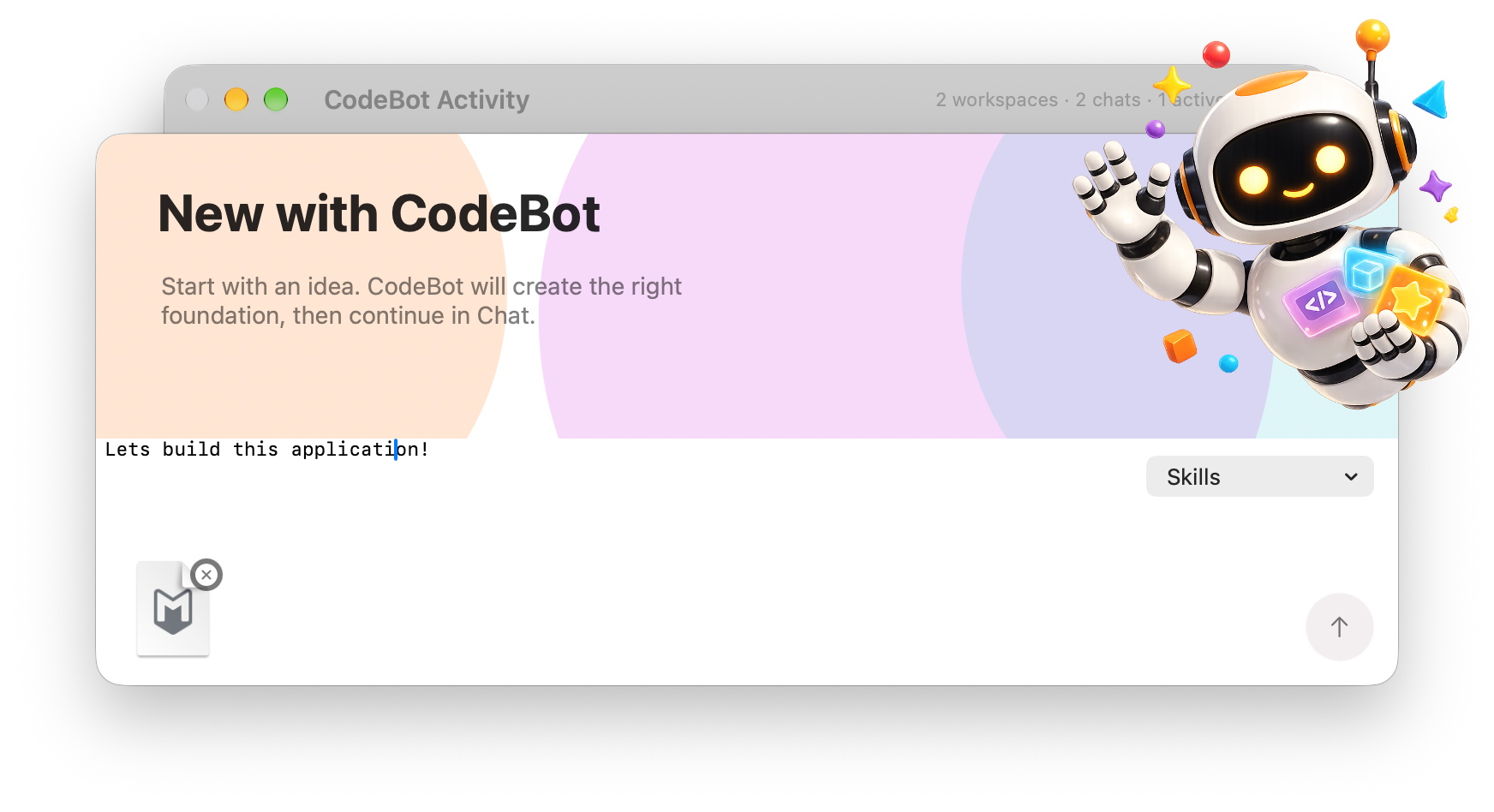
"New with CodeBot" is a great way to create something, well, new. Whether it's a new view, class, or feature in your app, a new sub-component for your solution, or a brand new project/solution.
Invoke "New with CodeBot" from the "File" menu, the New Project/New File sheet, or via /new in chat. Describe what want created, and CodeBot gets to work.
You can drag attachments in, for example a detailed specification for the project or feature you want done, or a diagram image explaining a flow. You can also invoke any custom "New with CodeBot" skills you might have created – a powerful option if you use the feature often and want to guide it to consistent results specific to your needs. For example, a skill could describe your preferred new project layout, guidelines for what libraries to use, reusable UI design guides and resources for your app style, and more.
4 - Source Indexes
One of the things CodeBot needs to do a lot is look at your code and find connections, relationships, and dependencies. But actually reading all the code is costly – both in terms of time and paid tokens.
Source Indexes solve this by building a searchable index of your entire codebase, using either simple keywords or – preferred – embeddings. An index is built once, and then updated incrementally as code changes. Searches – including semantic ones that look for the meaning of something rather than for concrete search terms- are quick and – more importantly – very cheap in comparison to a full code read.
In human terms, imagine that the text of book mentions roses. A simple textual search for "flowers" will not find that for you – but a semantic search based on embeddings will. Source Index is that, but for your code.
Because creating an initial index does come with a (small) up-front cost, Source Indexes are not created automatically. You can opt in to create one per solution – either via the Solution Settings sheet or by just asking CodeBot to create it. Once your solution has an index, it will remain updated, and CodeBot will use it as needed.
Source Indexes are also supported in CodeBot for Delphi, with build .79 or later.
Smaller Stuff
The above are the four "big ticket" items that set CodeBot 4 apart. But there's a lot more. In fact, what really takes CodeBot 4 to the next level are all the little details.
Context Summary
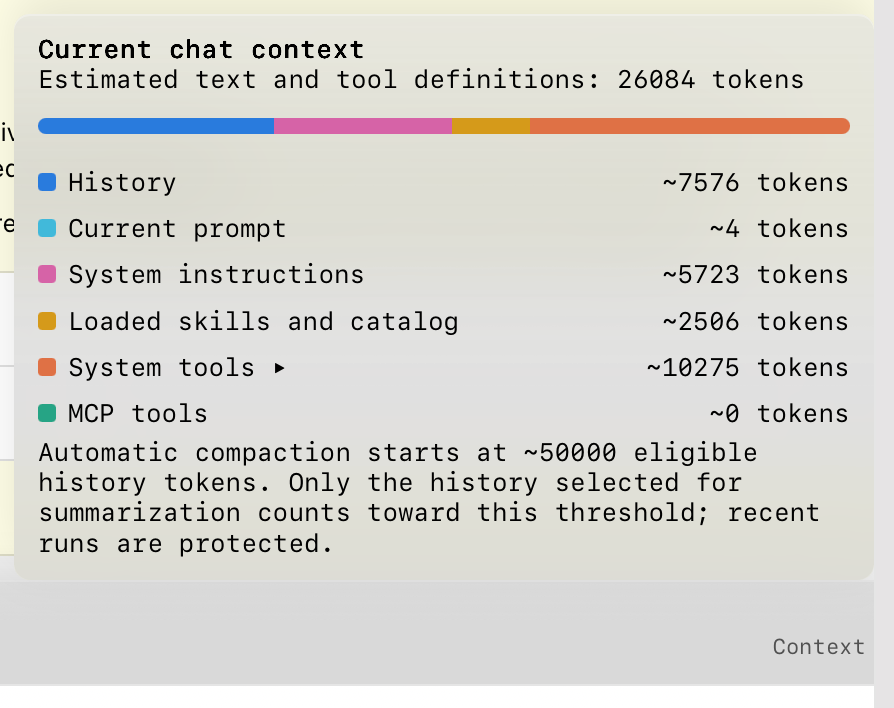
In each chat, you can now see a summary of how your context window is used – in other words, how much stuff is CodeBot sends to the AI model for each request. What's more, you can ask CodeBot to compact your context right then and there, if you like.
What is compacting?
Well. As you keep talking to CodeBot, your chat history grows and grows. With every new message, that whole history has to be related to the AI model. Current models allow for a huge context window (that's the amount of messages/text that they can take in), so you can chat for a long time before you run into any trouble. But there still comes overhead (and cost) with a growing chat context.
Compacting takes a certain amount of old messages (say the oldest half) and condenses them down to the essentials. It'll drop all the "oh that worked really well, thanx" and "no that's not what i mean, do it like this" and keeps the important bits the model needs to remember.
After compacting, a lot less data is sent to the model on new requests, but the data that is sent is more condensed to useful information.
Note that, even after compacting, you still have access to the full chat transcript. More importantly, new in CodeBot 4, CodeBot too still retains search access to the original chat, even the compressed data. So compression might have eliminated that really funny joke reply GPT gave you last week – but it's still there in the history be found if needed.
New GPT-6+ Features
OpenAI's GPT-6, first with Astra, opened the model interface to many exciting new capabilities. This are not necessarily new user-facing features you will see, but behind the scenes they improve almost any interaction you have with CodeBot, when using OpenAI's latest models.
These features work with any gpt-6 or gpt-6.1 model, including all models in the default codebot-openai-latest model strategy. They will not apply when using other providers.
Asynchronous tool calls
A big part of what makes CodeBot powerful is not just the information generated by the model, but the fact that it provides a wide set of tools that let the model work with your code and files, interact with the IDE, and more.
Traditionally, this happened very iteratively. You send a message, the model thinks and asks to run a tool. The tool runs, CodeBot sends a reply. The model looks at the result and maybe asks for another tool. And so on. For every one of these turns, the whole chat is resubmitted to the model, causing a lot of overhead (and token cost).
With asynchronous tools, this changes dramatically. You send a message to the CodeBot, and the model starts thinking. If it decided it wants to run tools, it can ask the IDE to run them and keep thinking. Once it gets the results, it incorporates them into where it goes next. All within the same run!
Live Steering
Live Steering improves steering, in a similar fashion.
What is steering? Simple. While CodeBot is busy running a request, you can type a new message and send it off. It can either be queued up to be sent later once CodeBot is done or – the default – it can be used to steer the current task.
For example, say you tell CodeBot "Add a button to this form that sorts the plumbuses by size". Just as you have sent it off, you have a thought. "– oh! and make it pink!"
Steering will try to guide CodeBot to take your additional demands into account while it is processing the first request, not just after its done. Traditionally, this required to wait for a "convenient time", for example when the model started sending a tool call. With live steering, your extra info can now be sent to the current run and affect it, without triggering a full new roundtrip. Again its more efficient and saves token cost and network bandwidth.
You will see small inline "steering" indicator when the model accepts your steering and adjusts.
Streamlined Tools and Approvals
CodeBot keeps you safe by having a strict approval system that guides what tasks the AI model can perform on your code, or your computer, and requires permission for anything that can be destructive.
CodeBot 3 erred on the side of caution: read access to your project was allowed (else, what's even the point 🤷🏼♀️), but everything else required your approval. Approvals could be granted fine-grained or wide ("this file" vs "any file in this folder"), and for a single time or indefinitely. This gave flexibility, but required a lot of handholding, still.
This strict mode is still the default for CodeBot 4, but we added three new levels that allow you to give CodeBot more control without (except for the extreme case) giving up security.
- Strict – as before
- Solution/Workspace – full read and write access to your solution or Campfire workspace, as well as access to all solution actions, such as building, debugging, etc. CodeBot won't ask e.g. to make changes to local files.
- Trust – CodeBot has access to most parts of your system, across solutions, with restriction on security-critical folders such as
~/.ssh. Terminal commands still require individual approval (but can be approved more generally) - Full Trust – This is "here there be dragons mode". CodeBot has full access to your system and terminal commands. General OS sandboxing and
sudorestrictions still applies, as do limits for accessing critical folders.
Use the last mode with caution/supervision, or on non-critical systems. But we think the sweet spot for day-to-day use will be either Solution or Trust, depending on your needs.
- New with CodeBot uses its own private variation of the Solution approval level. It can edit files, build, and run the new solution without asking for each step. The main difference is that an independent review can approve a specific terminal command for one execution if it finds the command safe.
Selected global skills can also grant read-only access to their declared dependency folders for the session.
Better Terminal Tool Approval.
We've all been there. CodeBot decides to go python on you, asks you to approve a command that spans two screen heights, and you really have no idea what it does, just to do a fancy text replace.
Two changes improve this in CodeBot 4:
- Every command that the model submits for your approval now comes with two requirements: the model must give (a) a clear description of what the goal or intention of the command is, and (b) an indication of whether the command is meant to be read-only or not.
- For every non-trivial command (and opt-in for trivial ones), CodeBot will run an independent analysis of the command, its goal and its security risks (if any), and present it to you as part of the approval request.
The combination of these two should give you much higher confidence in deciding whether to allow a command or not.
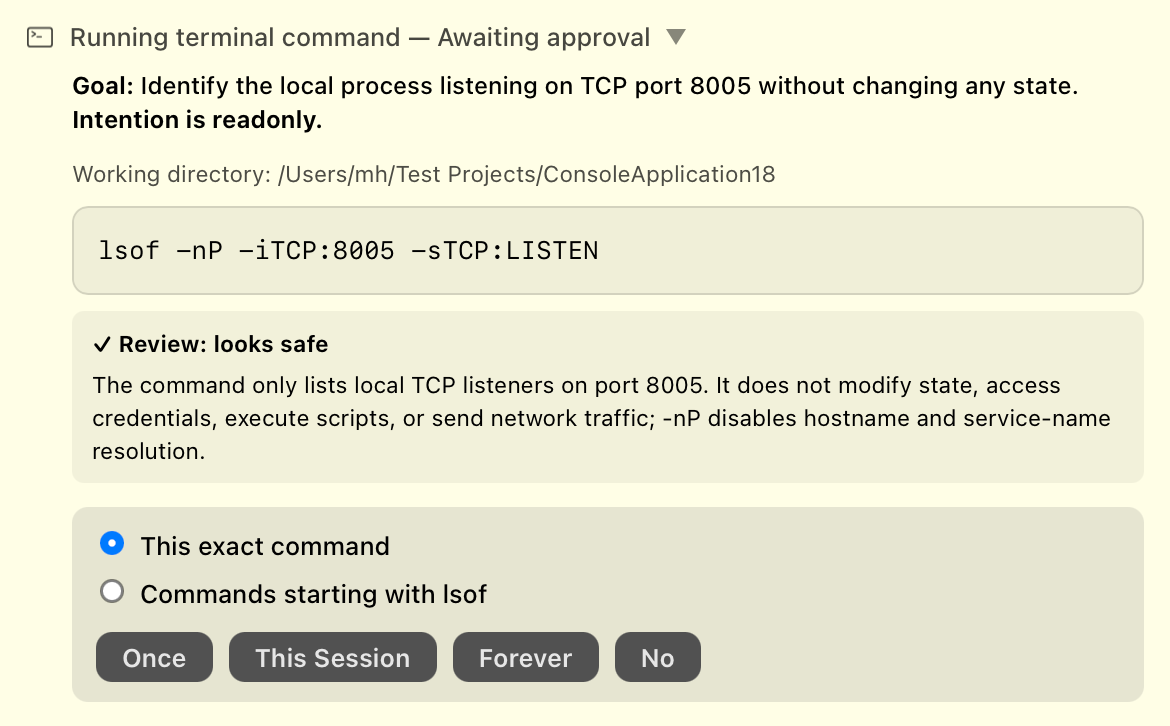
Cleaner Tool UI
Finally on tools, the UI for rendering tool calls has been improved to be more understated and flow inline with the rest of CodeBot's chat. Tools visually differentiate with unique glyphs, and groups of calls collapse to an outline.
Short Memory Mode
As mentioned before, the way AI chat works is that with every request the entire chat (or a compacted version of it) is sent to the model for each message. That is important, so that the chat continues to remember what you talked about prior, what its goals are and so on.
But sometimes you just want to get a few quick things done that don't really require the model to remember the story of its life. That's what Short Memory Mode is for. When enabled (via the chevron menu on the send button), each request will only use the last few messages for context. Enough to keep going for a few turns.
And more.
And there's more. Smarter CC. More tools for the AI to use and be more efficient. Improved skills. Chat forking. Tools for App Store Connect and Apple development setup tasks. Enhanced options for scheduled work. And more.
Campfire and Elements 14
CodeBot 4 is out now in Fire, Water, and Earth, with Elements 14, as well as the all-new Campfire, also released. today!
While less prominent there, it's also in today's update to GitBrowser, bringing many of its under-the-hood improvements and the new Activity window to your favorite Git client.